


When you find a useful resource, you want to get back to it easily and help your teammates find it too. But long URLs are hard to remember, and digging through apps and old messages to find a link takes you away from what you’re doing.
GoLinks solves this with short, memorable links that are easy to recall and share. Instead of sending a long URL, you can create a shortcut like go/sprint that gives your team an easy way to access the resource.
Now, you can create and find go links directly in Microsoft Copilot. The GoLinks app lets you turn URLs into memorable shortcuts, search your company’s existing links, and look up what a link is used for, all from your Copilot conversation.
In this guide, you’ll learn how to connect GoLinks to Microsoft Copilot and use it to create shortcuts, find resources, and make useful links easier for your team to share.
Quick Answer: What Does GoLinks Do in Microsoft Copilot?
GoLinks turns long URLs into short, memorable links that are easy to access and share with your team. With the GoLinks app for Microsoft Copilot, you can create shortcuts for commonly used resources, search your company’s existing go links, and look up what links are used for. Connect the app through Copilot’s Settings → Sources to get started.
What Are Go Links?
Go links are memorable shortcuts that take you to specific URLs. Instead of sharing a long web address, you can use a short, keyword-based link like go/support.
Teams use go links to make frequently accessed resources easier to find and share. They can point to internal documentation, project management tools, support resources, onboarding materials, and other destinations employees use every day.
Memorable links are useful because teammates can recall and share them without digging through bookmarks or old messages to find the original URL. A consistent naming convention also gives teams a familiar way to refer to shared resources.
With the GoLinks app for Microsoft Copilot, you can create these shortcuts while you’re working, search for links your organization already uses, and look up what an existing link is for.
How to Install GoLinks in Microsoft Copilot
You can connect GoLinks through Microsoft Teams and use the integration in the native Microsoft Copilot experience. Follow these steps to get started.
Step 1: Open Microsoft Copilot in Teams
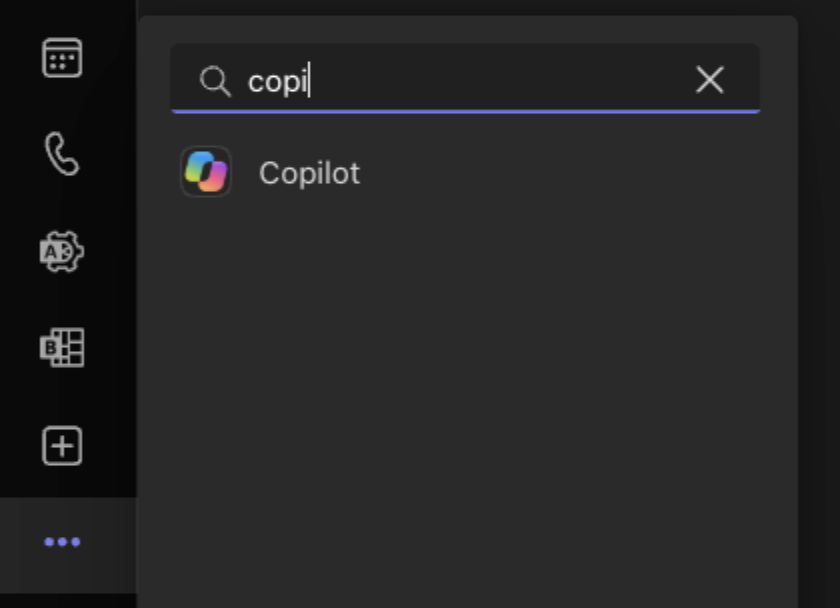
Open Microsoft Teams and find Copilot in the left sidebar. If Copilot isn’t pinned, search for it using the Teams search bar and open the app.
Step 2: Open Copilot settings
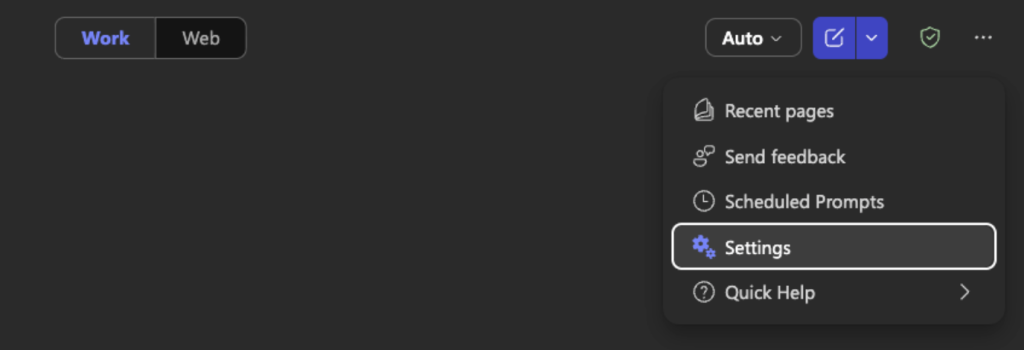
In Copilot, select the three-dot menu in the upper-right corner and click Settings.
Step 3: Find GoLinks in Sources
In the settings panel, select Sources. Under Browse sources, search for GoLinks.
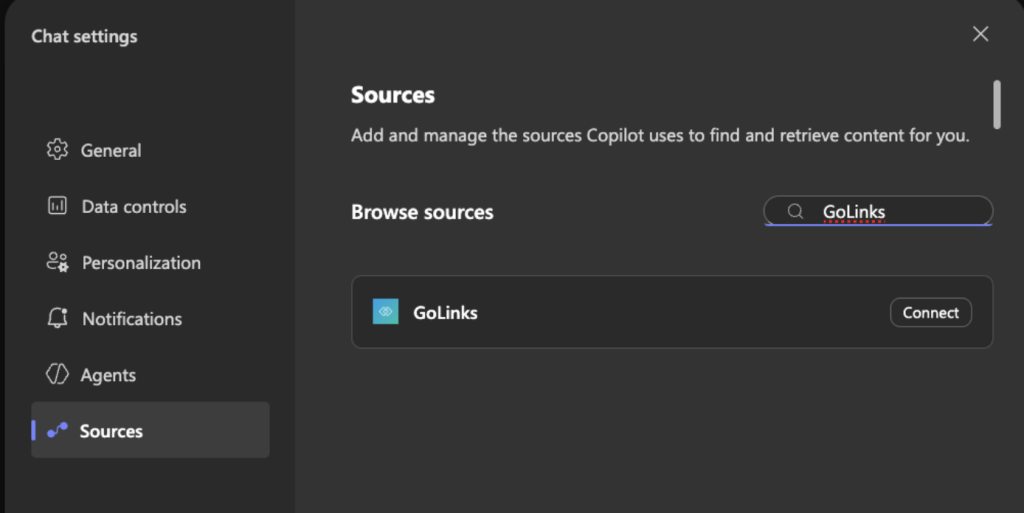
Select the GoLinks result and click Connect.
Step 4: Connect your GoLinks account
A connection window will appear. Click Continue to GoLinks to proceed.
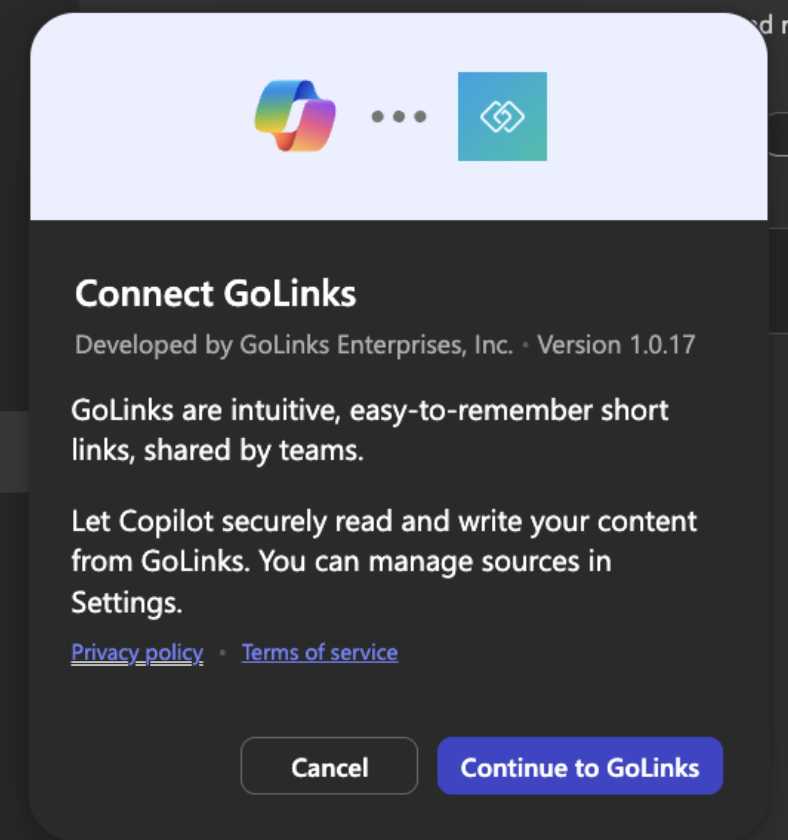
Step 5: Authorize access
Sign in to your GoLinks account if prompted. Review the requested permissions and click Authorize to complete the connection.
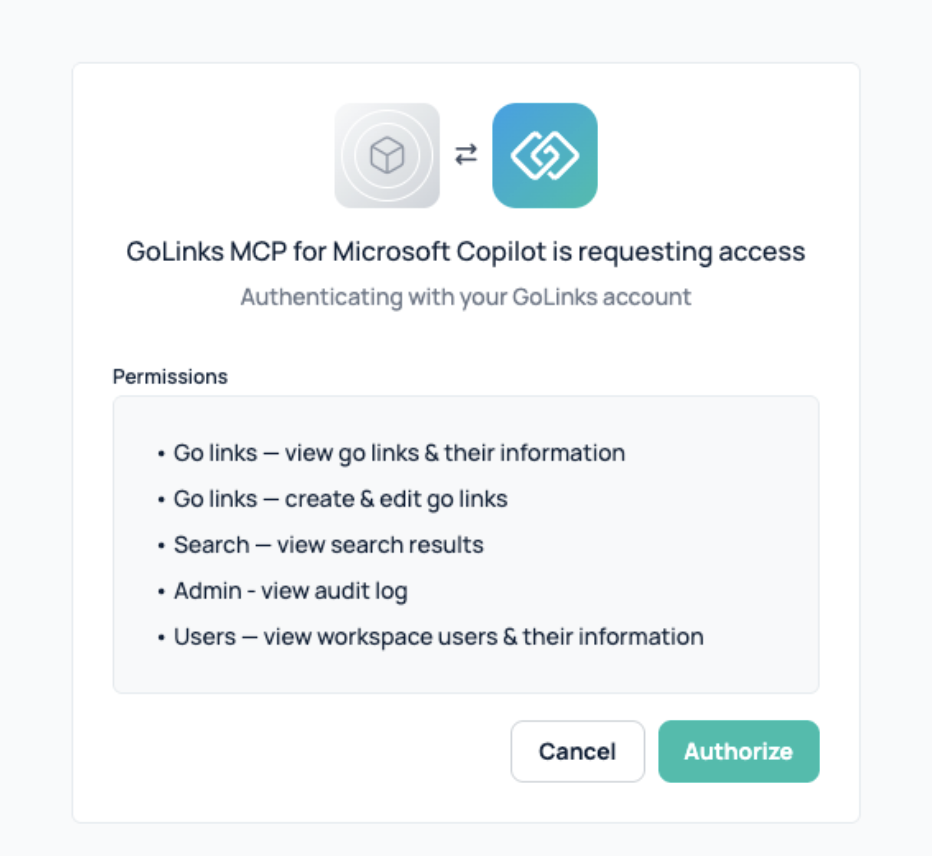
Step 6: Start using GoLinks in Copilot
Once connected, you can start searching your company’s go links library, looking up existing shortcuts, and creating new go links through Copilot.
Try asking Copilot to find a link related to a topic, explain what a shortcut is used for, or create a memorable link for a resource you want to share.
Prefer to use Copilot in your browser? You can also access the integration through the Microsoft Copilot website. If you’ve already installed GoLinks through Teams, the app should be available there. Otherwise, open Settings, select Sources, search for GoLinks, and click Connect.
How to Create Go Links in Microsoft Copilot
One of the most useful ways to use GoLinks in Copilot is to create a memorable shortcut as soon as you find a resource worth keeping or sharing.
Instead of switching to another tool to create a link, you can ask Copilot to create one as part of your conversation.
1. Turn a long URL into a memorable shortcut
Found a document, dashboard, or tool you’ll need again? Create a go link that makes it easier to access and share.
Example prompt:
“Create a go link called go/handbook for this URL: [paste URL].”
Choose a short, descriptive name that makes the destination easy to recognize. A shortcut like go/handbook is easier to recall and share than a long URL.
2. Create shortcuts your team can reuse
Go links are especially useful for resources that multiple teammates need to access. Instead of repeatedly sharing the original URL, create a memorable shortcut that teammates can use in conversations, documentation, and other places they work.
Example prompt:
“Create a go link called go/kpis for our project dashboard: [paste URL].”
You could create shortcuts for onboarding documents, team resources, project dashboards, internal documentation, or frequently used tools.
Before creating a link, check that the destination URL and shortcut name are correct.
3. Create a link while working through a task
You don’t have to wait until the end of a project to organize the resources you’ve found. When a useful URL comes up in your Copilot conversation, you can create a go link for it right then.
For example, if you’re gathering resources for a new project, create memorable shortcuts for the dashboard, planning document, and supporting documentation as you go.
This helps turn useful resources into links you and your teammates can refer back to later, without interrupting your workflow to manage them separately.
How to Find Existing Go Links in Microsoft Copilot
If your organization already uses GoLinks, Copilot gives you another way to discover shortcuts and retrieve information about them.
1. Find a link when you don’t know its name
You may know what you’re looking for without remembering the shortcut. Describe the resource or task and ask Copilot to search your company’s GoLinks library.
Example prompt:
“What go link should I use for submitting an IT request?”
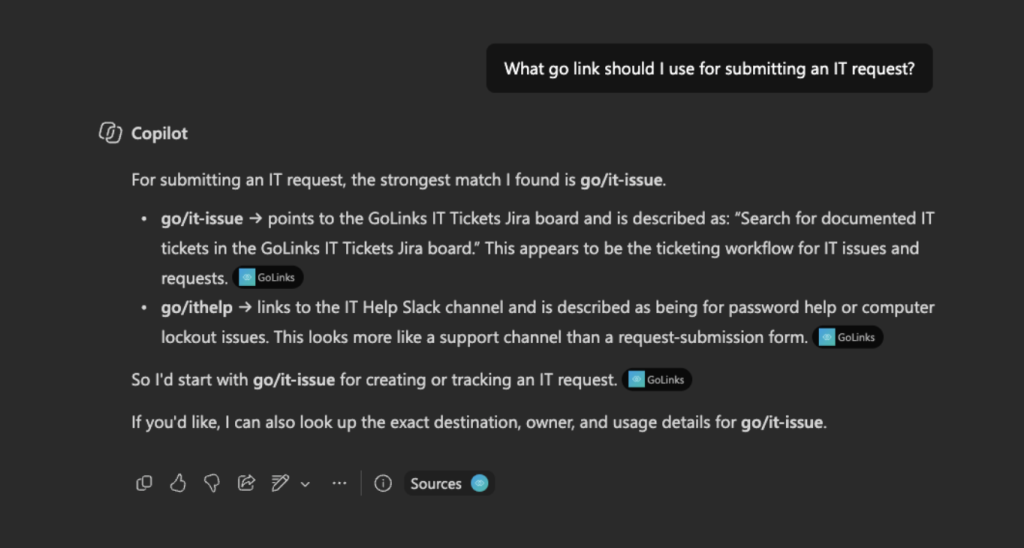
You can also try:
- “Find go links related to GitHub.”
- “What link should I use to access our employee handbook?”
- “Find go links related to our development documentation.”
- “Show me go links for our project management tools.”
Searching by topic or purpose can help you discover relevant resources without knowing the exact shortcut.
2. Look up a specific go link
If you know a shortcut but aren’t sure what it leads to, ask Copilot to look it up.
Example prompt:
“Tell me about go/mqls.”
This can help you understand what an existing shortcut is used for and identify whether it’s relevant to your task.
3. Discover resources your team already uses
GoLinks gives teams a shared way to organize and refer to useful resources. Searching the library through Copilot can help you discover links that teammates have already created.
For example, if you’re joining a project, you could search for go links related to its tools or documentation. If you’re helping a new employee, you could look for links related to onboarding.
The more context you provide about the resource or task, the easier it may be to find relevant matches.
Why Use GoLinks in Copilot?
GoLinks makes URLs easier to remember and share. Microsoft Copilot gives you a conversational way to create and find those shortcuts while you’re already working.
Together, they support a few everyday workflows:
- Create links in the moment. Turn a URL you use often into a memorable shortcut without leaving your Copilot conversation.
- Make resources easier to share. Give teammates a short, recognizable link they can use again.
- Find links using natural language. Search for resources by topic or purpose instead of remembering the exact shortcut.
- Understand existing shortcuts. Ask Copilot what a go link is used for when you need more context.
Whether you’re creating your first go link or searching a library your company already maintains, the integration makes it easier to work with memorable links from within Copilot.
Tips for Getting the Most Out of GoLinks in Copilot
A few simple habits can make your go links more useful to you and your team.
Use descriptive shortcut names. Names like go/helpdesk or go/benefits make it easier to recognize what a link is for.
Create links for resources you’ll reuse. Consider documentation, dashboards, onboarding materials, and other resources you regularly return to or share.
Follow consistent naming conventions. When creating shortcuts for a team, use names that fit how your organization already refers to its resources.
Check URLs before creating links. Make sure the destination is correct so your shortcut takes people to the intended resource.
Search by purpose when you don’t know the name. If you can’t remember a shortcut, describe the task or resource you’re looking for and ask Copilot to find relevant links.
Bring GoLinks Into Your Copilot Workflow
Useful resources shouldn’t be difficult to find or share. GoLinks turns long URLs into memorable shortcuts, and the Microsoft Copilot integration lets you create and discover those shortcuts through natural-language conversations.
Create a link when you find a resource worth keeping, share it with your team, or search for an existing shortcut when you need one. You can do it all from Copilot.
Ready to get started? Install GoLinks from Microsoft Marketplace and connect it to Microsoft Copilot. New to GoLinks? Get a demo to see how it works with your Microsoft tools.
Access and share resources instantly with GoLinks
Schedule a demo
Frequently Asked Questions
What is GoLinks in Microsoft Copilot?
GoLinks in Microsoft Copilot is an integration that lets you create memorable shortcuts for URLs, search your company’s existing go links library, and look up what a link is used for. Go links turn long web addresses into short, recognizable names that are easier to remember and share with teammates.
How do I install GoLinks in Microsoft Copilot?
Open Copilot in Microsoft Teams, go to Settings → Sources, search for GoLinks, and click Connect. Continue to GoLinks and authorize the connection. Once setup is complete, you can create new go links, search existing shortcuts, and ask questions about what links are used for. You can also access the integration through the Microsoft Copilot website.
Can I create go links directly in Microsoft Copilot?
Yes. The GoLinks app lets you create new shortcuts directly in Copilot. Provide the destination URL and the memorable name you want to use, such as go/handbook. This makes it easier to create a reusable link when you find a resource you want to access or share with your team.
Why use go links instead of sharing long URLs?
Go links replace long URLs with memorable shortcuts. They’re easier to recall, share in conversations, and use when referring teammates to frequently accessed resources. With GoLinks in Copilot, you can create shortcuts as you work and search for existing ones without having to remember the exact link name.
Can I search existing go links in Microsoft Copilot?
Yes. You can ask Copilot to search your company’s GoLinks library by topic, resource, or task. For example, ask, “What go link should I use to submit an IT request?” or “Find go links related to Microsoft Teams.” You can also look up a specific shortcut to understand what it’s used for.
Is the GoLinks app for Microsoft Copilot free?
The GoLinks app for Microsoft Copilot is available on the free GoLinks plan. You can connect the integration and use its supported Copilot capabilities without upgrading to a paid plan. Other GoLinks features may have separate plan requirements.
Can I use GoLinks in Copilot without Microsoft Teams?
Yes. You can access the GoLinks integration through the native Microsoft Copilot website at copilot.cloud.microsoft. If you’ve already installed GoLinks through Teams, the app should be available there. Otherwise, open Copilot settings, select Sources, search for GoLinks, and connect your account.