


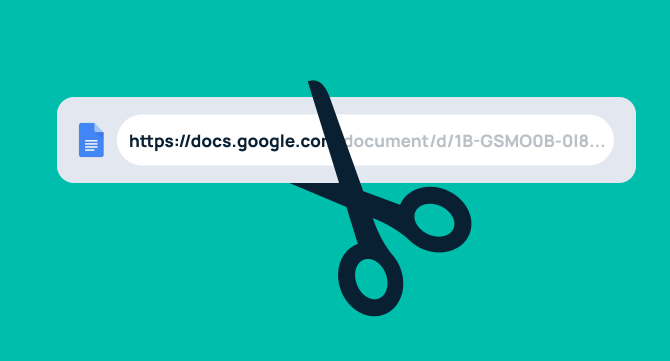

If you’ve ever pasted a sprawling Google Docs URL into a team chat, an email, or another document, you already know the problem: long links are ugly, hard to remember, and nearly impossible to share verbally. For teams that keep onboarding guides, SOPs, style guides, and knowledge bases in Google Docs, short links make those resources easier to find and share.
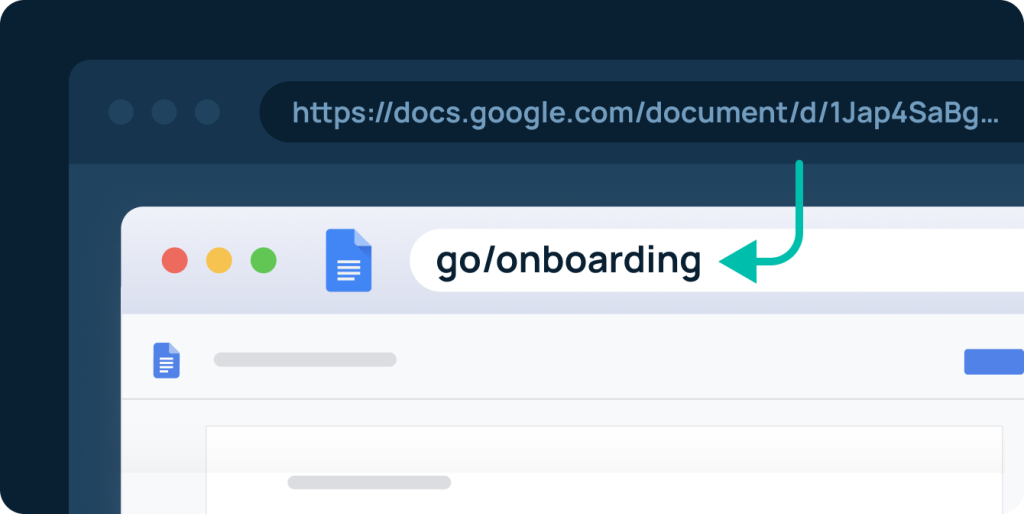
A go link is a short, memorable internal URL — like go/onboarding or go/brand-guide — that redirects anyone on your team to any destination you set.
This guide covers the fastest, most team-friendly way to shorten a link in Google Docs, including a step-by-step walkthrough and answers to common questions.
What Is the Best Way to Shorten a Link in Google Docs?
The best way to shorten a link in Google Docs is to use GoLinks, a team-focused URL shortener. Install the GoLinks Chrome extension, paste your long URL, generate a short “go link,” and insert it directly into your Google Doc. Unlike public shorteners or discontinued tools like Google’s own URL shortener (goo.gl), GoLinks lets teams save, organize, and share links securely.
Why You Need a Link Shortener for Google Docs
Long URLs buried inside Google Docs create friction — especially in onboarding guides, style guides, wikis, and other frequently shared internal documents. A good short link is easier to read, easier to remember, and can even be shared verbally in a meeting or Slack huddle without anyone scrambling to type a 90-character URL. And the benefits of using a URL shortener go beyond convenience — the right tool also improves analytics visibility, strengthens security, and makes internal knowledge easier to find at scale.
The need has only grown since Google retired its URL shortener, goo.gl. Google blocked new users from creating links in April 2018 and ended link creation for everyone on March 30, 2019. In August 2025, Google deactivated inactive goo.gl links but kept actively used ones working. Teams now have no native way to create new short links. Public tools like Bitly fill the gap for personal use, but they weren’t built for internal teams. They lack the access controls and organization features that company documentation demands.
GoLinks: The Best Google Docs Link Shortener for Teams
GoLinks is purpose-built for internal teams who live inside tools like Google Docs. Instead of copying and pasting long, unwieldy URLs, your team gets short, memorable go links — like go/onboarding or go/brand-guide — that anyone can type directly into a browser, drop into a Slack message, or say out loud in a meeting.
Why GoLinks Beats Other URL Shorteners
| Feature | GoLinks | Bitly (free) |
|---|---|---|
| Native Google Docs add-on | ✅ | ❌ (browser extension only) |
| Type a link by name in any browser (go/…) | ✅ | ❌ |
| Ad-free redirects | ✅ | ❌ |
| Monthly link cap | None | 5 |
| Save & organize links | ✅ | Limited |
| Analytics | ✅ | Limited |
GoLinks also integrates natively with Slack, Zoom, Microsoft Teams, and more — so your short links work seamlessly across every tool your team already uses, not just Google Docs. For a deeper look at why public shorteners fall short for internal use — and what actually drives team-wide adoption — see our guide to internal short links.
How to Shorten a Link in Google Docs: Step-by-Step
Follow these steps to create a short link inside any Google Doc using the GoLinks Chrome extension:
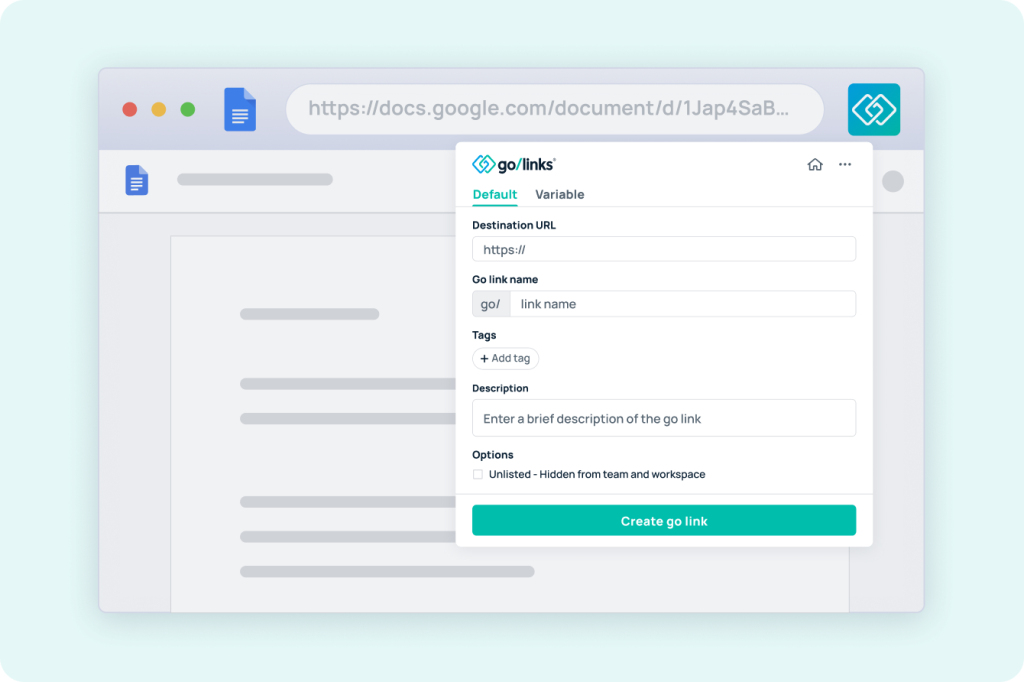
Before you start: Sign up for a free GoLinks account and install the GoLinks Chrome extension.
- Copy your Google Doc’s URL. Open the doc in Chrome and copy the full
https://docs.google.com/…address from the address bar. - Open the GoLinks extension. Click the GoLinks icon in your browser toolbar.
- Paste the URL. Drop it into the Destination URL field.
- Name your go link. Choose a short, memorable name like go/q3-report or go/brand-guide. Add tags and a description if you want.
- Create and insert the link. Click Create, copy the go link, and paste it into your Google Doc.
- Share it anywhere. Drop it in Slack, say it aloud in a meeting, or type it into any browser.
Pro tip: Name go links the way your team talks. If people say “the brand guide,” use go/brand-guide. Names people can guess get used. Names they have to look up don’t.
Bonus: Convert Go Links to Clickable Hyperlinks
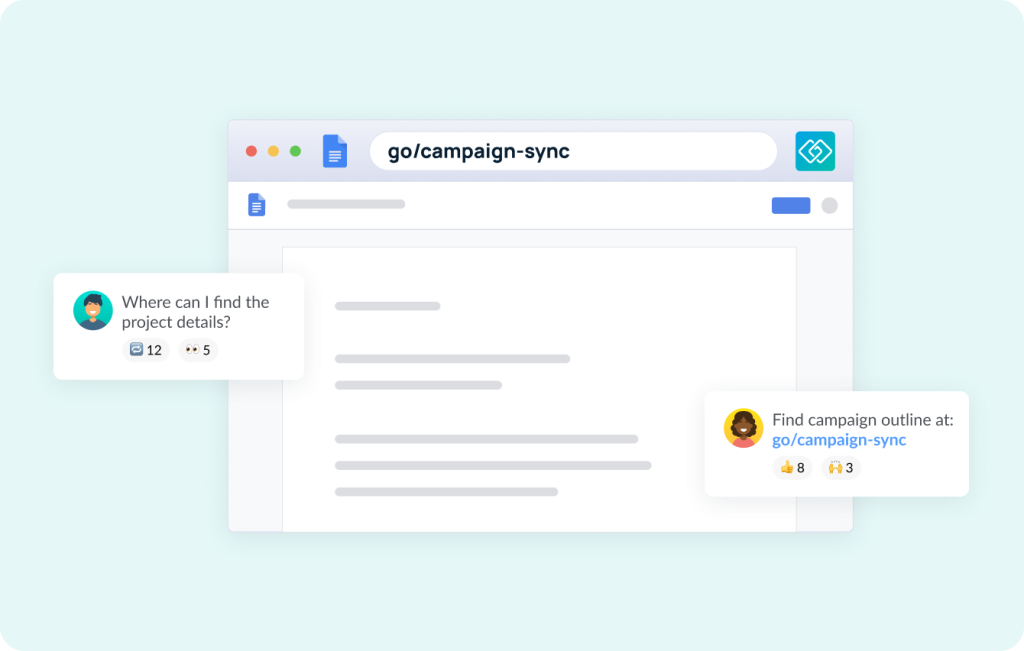
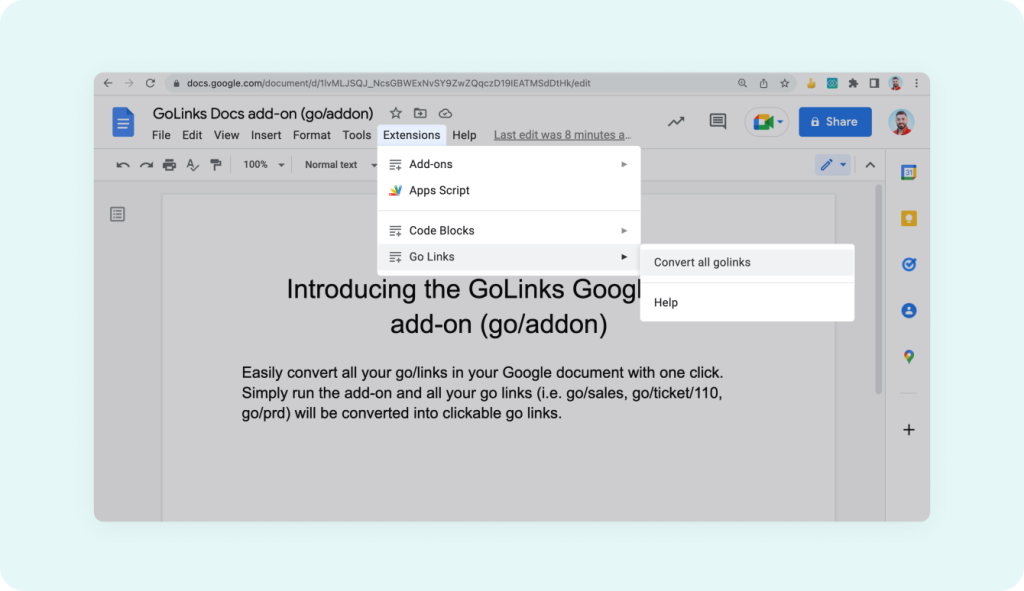
The Chrome extension isn’t your only option. The GoLinks Google Docs add-on automatically turns every go link in your document into a clickable hyperlink — a smart final step before sharing with readers less familiar with go link conventions.
Key Benefits of Using GoLinks to Shorten Links in Google Docs
Memorable, customizable short links Replace https://docs.google.com/document/d/1BxiMVs0XRA… with something like go/style-guide. Short, intuitive links stick — long URLs don’t.
Verbal shareability GoLinks can be spoken aloud in a meeting or Zoom call: “just go to go/onboarding.” Teammates type the name straight into a browser, with no bit.ly domain or random string to remember.
Analytics and usage tracking See exactly which resources your team uses and which ones collect dust. Use that data to tighten up your documentation, retire outdated links, and keep employees pointed at what actually matters.
Enterprise-grade security and compliance GoLinks uses single sign-on (SSO), encrypted customer data, and is SOC 2 Type II certified — so even your most sensitive internal documentation stays protected.
Seamless integrations GoLinks works with Slack, Zoom, Microsoft Teams, Notion, Confluence, and more. Wherever your team works, go links work too.
Start Shortening Links in Google Docs Today
Google no longer offers a native link shortener, and public tools like Bitly weren’t built for internal teams. GoLinks fills that gap — secure, team-friendly, and deeply integrated with Google Docs. The result is short, memorable links your whole team will actually use.
Sign up for a free GoLinks account, install the Chrome extension, and create your first go link in under two minutes.
Access and share resources instantly with GoLinks
Try for free
Frequently Asked Questions About Shortening Links in Google Docs
Partially. Delete everything after the document ID (for example, /edit?usp=sharing) and the link still opens the doc. The URL stays long and unreadable, though. For a short, memorable link, use a go link.
Google Docs does not have a built-in link shortener. The best way to shorten a link in Google Docs is to use a third-party tool like GoLinks, which integrates directly via a Chrome extension and Google Docs add-on.
No. Google announced in March 2018 that it would wind down goo.gl, citing changes in how people find content online. Link creation ended for all users on March 30, 2019. On August 25, 2025, Google deactivated goo.gl links that showed no activity in late 2024. Actively used links still redirect, but no one can create new ones. Teams that need short links now rely on third-party tools like GoLinks.
GoLinks is the best link shortener for Google Docs. It integrates via a Chrome extension and Google Docs add-on, offers a free plan, and is designed specifically for internal teams — not just public sharing.
Bitly is a public tool not designed for internal documentation. It lacks enterprise-grade permissions, team management, and organizational access controls. For internal Google Docs, GoLinks is a more secure and better-organized alternative.
Install the GoLinks Chrome extension, open the Google Drive file, copy its URL, click the GoLinks extension icon, paste the URL, name your go link, and insert it wherever you need it — including directly in a Google Doc.
Yes — and that’s one of GoLinks’ biggest advantages over standard link shorteners. Links like go/budget-2027 can be spoken aloud in meetings, Zoom calls, or Slack huddles without anyone needing to type or copy a long URL.